Flexcon License Manager
Introduction
If you install optional third-party modules, such as Flexcon Helios or Flexcon Emulation, you may need to activate additional licenses to enable all their features. Licenses for products supported by Flexcon s.r.l. are managed via the Flexcon License Manager, which is automatically added to your FlexSim installation whenever you install a product that uses this licensing system.
Flexcon License Manager does not enable any of the core FlexSim features. You still need to activate a FlexSim license key, which you can obtain from your local FlexSim distributor or other Autodesk channels.
License Management
License Key
Similar to the FlexSim licensing system, Flexcon License Manager uses
license keys to activate licenses. A key is usually a string that looks like
AAAAAAAA-AAAAAAAA-AAAAAAAA-AAAAAAAA. Anyone who knows the
license key can activate the license, so we recommend managing your license
keys carefully, as you would with passwords or other credentials.
Activation and Deactivation
To activate a license, go to the Help menu, select Flexcon License Activation, enter your license key in the Activate tab, and click Activate License.
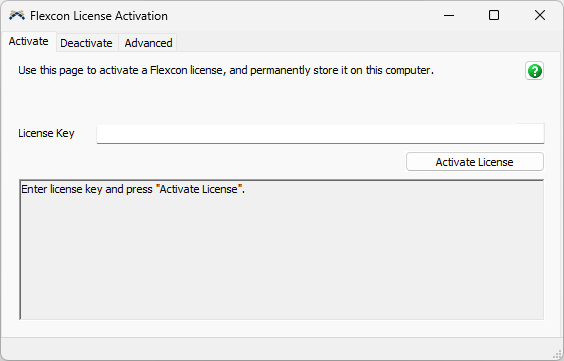
After the completion of this operation, the outcome will be printed in the status panel below:
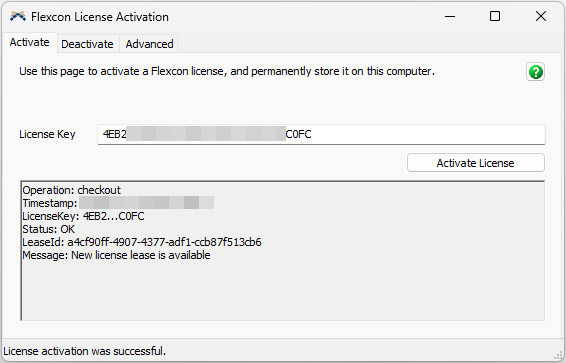
Some licenses can be activated on more than one computer. Each computer is counted as a seat, and each activation grants access to the product features for all users of that computer and allows using the product from any number of FlexSim instances. Some licenses may simultaneously grant access to multiple products (features). Licenses will usually specify the range of the supported product versions and the time period during which they are valid.
Deactivating a license removes access to all product features from this computer and makes the seat available for activation on a different computer. If you reinstall the operating system, upgrade hardware components (such as the CPU or motherboard), or flash the BIOS, you may need to deactivate licenses before the upgrade and reactivate them afterward. The number of activations may be limited by the terms of the End User License Agreement for each product.
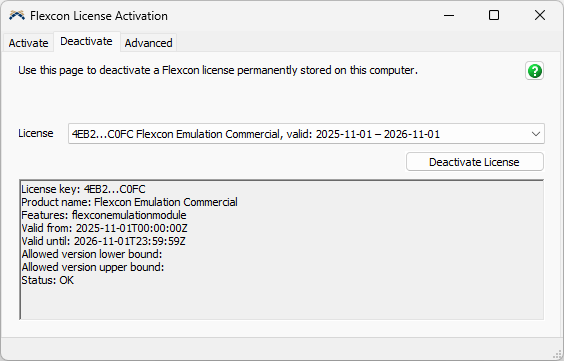
To deactivate a license, go to the Help menu, select Flexcon License Activation, then, in the Flexcon License Activation dialog, switch to the Deactivate tab, select one of the active licenses from the drop-down list, and press Deactivate License. The outcome of the operation will be printed in the status panel below.
License Updates
Flexcon License Manager occasionally connects to the online licensing service to check and automatically extend the validity of the license leases. If the license subscription is renewed in time, it will automatically extend the validity period and the range of supported product versions. Normally, no user action is required.
Flexcon License Manager will not automatically update expired license leases and will eventually remove them. If the license is renewed close to its "validUntil" date, you may need to manually deactivate and reactivate the license. To ensure uninterrupted access to product features, we recommend renewing licenses at least 30 days in advance.
Support
If you encounter any issues, please contact Flexcon s.r.l. at
support@flexcon.it.
To gather information about the state of your licensing system, go to the Help menu, select Flexcon License Activation, navigate to the Advanced tab, and open the Support Diagnostics panel. Click Collect Diagnostics button, and then copy the information displayed in the Support Diagnostics window and attach it to your support request to speed up troubleshooting.