The Submodel Export
Overview and Key Concepts
The Submodel Export tool is used to define a Submodel. For more information on using Submodels, see Key Concepts About Submodels. The Submodel Export tool allows you to specify which container defines the submodel and which dependencies should be included when exporting the submodel.
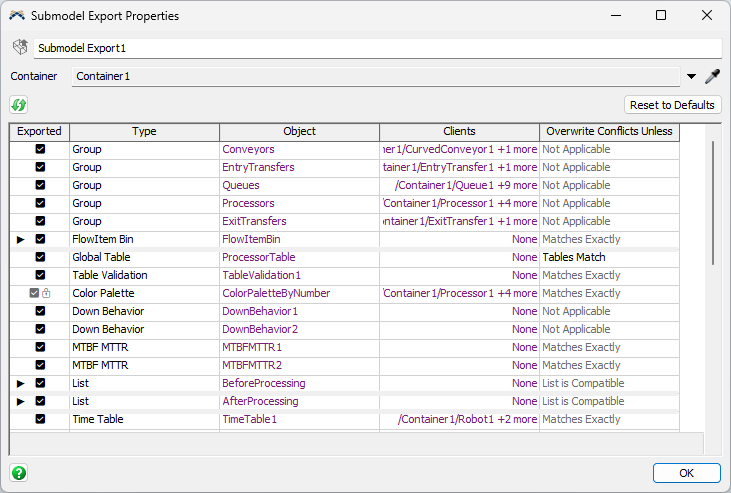
Properties
The Submodel Export tool has the following properties:
Container
This property specifies the container object that defines the submodel. You can select a container either from the dropdown list or by using the sampler. Choosing a container will automatically refresh the dependencies table.
Refresh
The refresh button allows you to manually refresh the dependencies table in case you have made changes to the model after selecting the container.
Reset to Defaults
The reset to defaults button clears the dependencies table. It then re-scans the model for dependencies.
Dependencies Table
The Dependencies Table displays all the dependencies of the selected container object. The table has the following columns:
- Exported - Indicates whether this dependency is part of the submodel.
You can check the box to include the dependency or uncheck the box to exclude it.
In addition to a checkbox, you might also see a lock icon 🔒.
This indicates that you cannot change whether the dependency is exported.
There are two possible reasons for this:
- An object in the container requires this dependency to function. For example, a Rack requires a Storage System.
- An object's parent is not exported, so it cannot be exported. For example, if you don't export the Flowitem Bin, you can't export specific flowitems.
- Type - displays the type of object being exported.
- Object - displays the formatted name of the object being exported.
- Clients - displays a list of objects in the container that have a direct link to this object. Click on the cell and open the dropdown menu to see the complete list.
- Overwrite Conflicts Unless - displays the current conflict resolution rule. If an object with the same name and type exists in the importing model, this rule is used to determine whether the existing object is compatible with the importing object. Click on the cell to open a dropdown for a longer description of the rule being used. In some cases, you can even choose among different options.