Autodesk Vault
Overview
The AdskInterop module from Autodesk facilitates seamless interoperability between FlexSim and Autodesk Vault. This integration enables users to efficiently manage FlexSim models within the Vault environment. Additionally, it empowers FlexSim to handle Factory Assets and Layouts stored in Vault.
Getting Started
Autodesk Vault is a data management software that helps organize, manage, and track data creation, simulation, and documentation processes. With the integration of Vault with FlexSim, you can now store all your models within Vault and share them across your organization, effectively enhancing collaboration. Refer this documentation to learn more about Vault - What is Vault?
Setup Vault
Autodesk Vault Professional must be configured in a specific way to manage Factory data. Refer Configuring Vault for Factory Design for detailed instructions. Additionally, you will need the Autodesk Vault Professional Client installed on your system.
Set Working Folder
The files stored in a vault cannot be directly edited. To work with these files, you need to set up a working folder on your system, which acts as a local Vault Workspace. When you check out files or retrieve versions from the vault, they are copied to this local folder, ensuring that all vault workflows remain intact.
Learn how to Set the Working Folder.
Vault Menu Commands
The AdskInterop module adds a dedicated menu for Vault-related commands to the main menu. This section provides an explanation of each command within this menu.
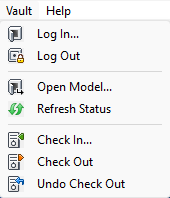
Log In
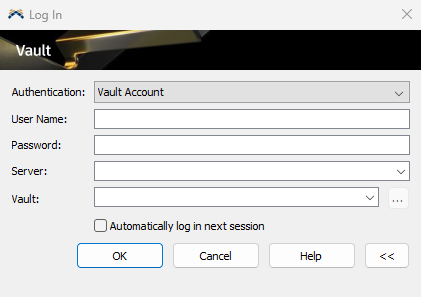
This command allows you to log in to Autodesk Vault Professional. You will need to provide your Vault credentials, including the server details, username, and password. Once logged in, you can access and manage your Vault data directly from FlexSim.
Log Out
This command logs you out of Autodesk Vault Professional. You will not be able to access any Vault commands once you are logged out.
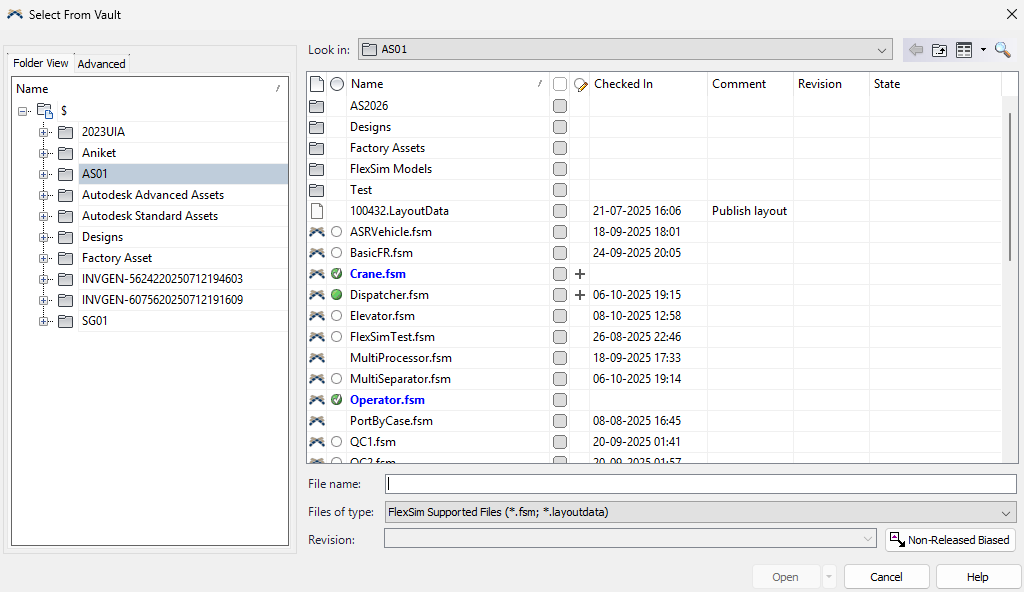
Open Model
This command opens a dialog that allows you to browse and select a FlexSim model or Factory Layout stored in Vault. Once you select a file, it will be downloaded to your local working folder and opened in FlexSim.
Refresh Status
This command updates the Vault status of the currently open FlexSim model. It checks for any changes made to the model in Vault, such as check-ins or check-outs by other users, and refreshes the status displayed in FlexSim accordingly.
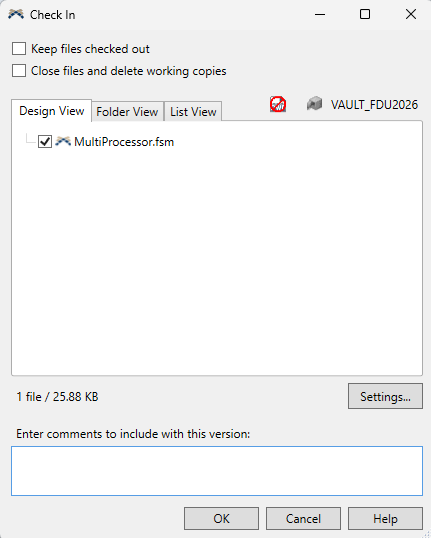
Check In
This command checks in the currently open FlexSim model to Vault. Checking in a model saves any changes made and updates its version in Vault. During the check-in process, you will be prompted with a Check-In dialog to provide comments about the changes made.
Check Out
This command checks out the currently open FlexSim model from Vault. Checking out a model allows you to make changes to it while preventing other users from modifying it simultaneously. You can modify and save the model only when it is checked out.
Undo Check Out
This command undoes the check-out of the currently open FlexSim model. It discards any changes made after the last check-out and reverts the model to its previous state in Vault. This option is useful if you want to abandon your changes and restore the model to its last checked-in version.