The Submodel Import
Overview and Key Concepts
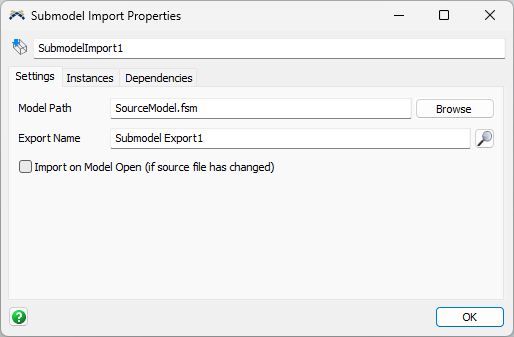
The Submodel Import tool is used to bring a Submodel into another simulation model. For more information on using Submodels, see Key Concepts About Submodels. The Submodel Import tool allows you to specify which model file and submodel to import.
The Settings Tab
The Submodel Import tool has the following properties:
Model Path
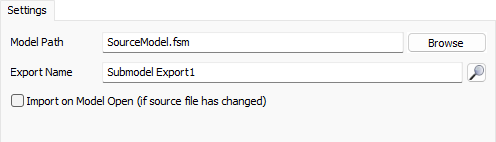
This property specifies the model file that contains the submodel to import. You can use type in the path manually or use the Browse button to select a model file from your computer. If the file is in the same directory or in a subdirectory relative to the current model, you can use a relative path. Otherwise, you should use an absolute path.
Submodel
This property specifies which submodel to import from the selected model file. If you have specified a model file already, you can use the search button to search for submodels in the file. Note that clicking this button will load the model file to generate the list.
Import on Model Open (if source file has changed)
Check this box to check for changes in the submodel when this model is opened. If the file has changed since the last import, the import algorithm will run again.
The Instances Tab
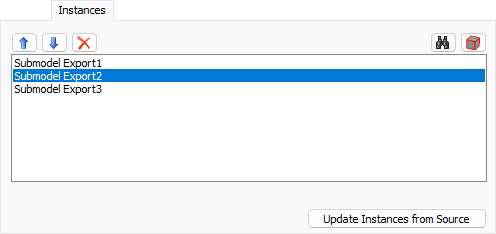
The Instances tab shows the instances of the submodel:
The Instances List
The Instances list shows the set of instances in the model. You can reorder and remove instances. Submodels are checked for being up-to-date in the order shown. You can also remove instances. Removing an instance does not delete the container. Instead, it means that the container is no longer a submodel.
Update Instances from Source
Click this button to run the import algorithm again.
The Dependencies Tab
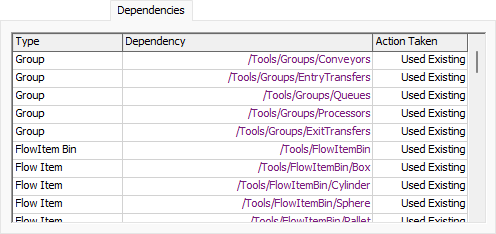
The Dependencies tab shows the dependencies of the submodel:
The Dependencies Table
This table shows all the dependencies that the import algorithm considered and what action it took. Possible actions are:
- Added
- Used Existing
- Replaced Existing